
After selecting a theme for your podcast website, you can customize its appearance and layout using the Theme Editor.
Note: This article uses the Vertex theme as an example. Depending on your selected theme, some customization options may be different.To customize your podcast website:
- Go to Distribution -> Podcast Website and click Customize to open the Theme Editor.

- Select a customization category from the right panel.
- Make your changes.
- Click Save to apply your changes.
The Theme Editor includes the following customization categories:
Color and Font
Customize the overall appearance of your podcast website.
Mode – Switch between Light and Dark mode.
Header Background – Change the background color of your website header.
Header Text Color – Change the color of the text displayed in the header.
Brand Color – Choose the primary color used for interactive elements throughout your podcast website.
Font – Select the font used on your podcast website.

You can use Reset to Default at the bottom of the page to reset the changes to the default settings.
Top Navigation
Customize the navigation menu displayed at the top of your website.
You can:
- Add custom navigation links by selecting a link type:
Episodes – Link to your episode list.
Subscribe – Link to the subscribe page.
Page – Link to a custom page on your podcast website. Learn how to create a page.
Seasons – Display a dropdown menu with your podcast seasons. Available when seasons are set up for your podcast.
Tags – Display a dropdown menu with episodes organized by tag. Available when tags are set up for your podcast.
Link – Add a link to a custom destination.
- Drag and drop menu items to change their order.
- Remove items that are no longer needed.

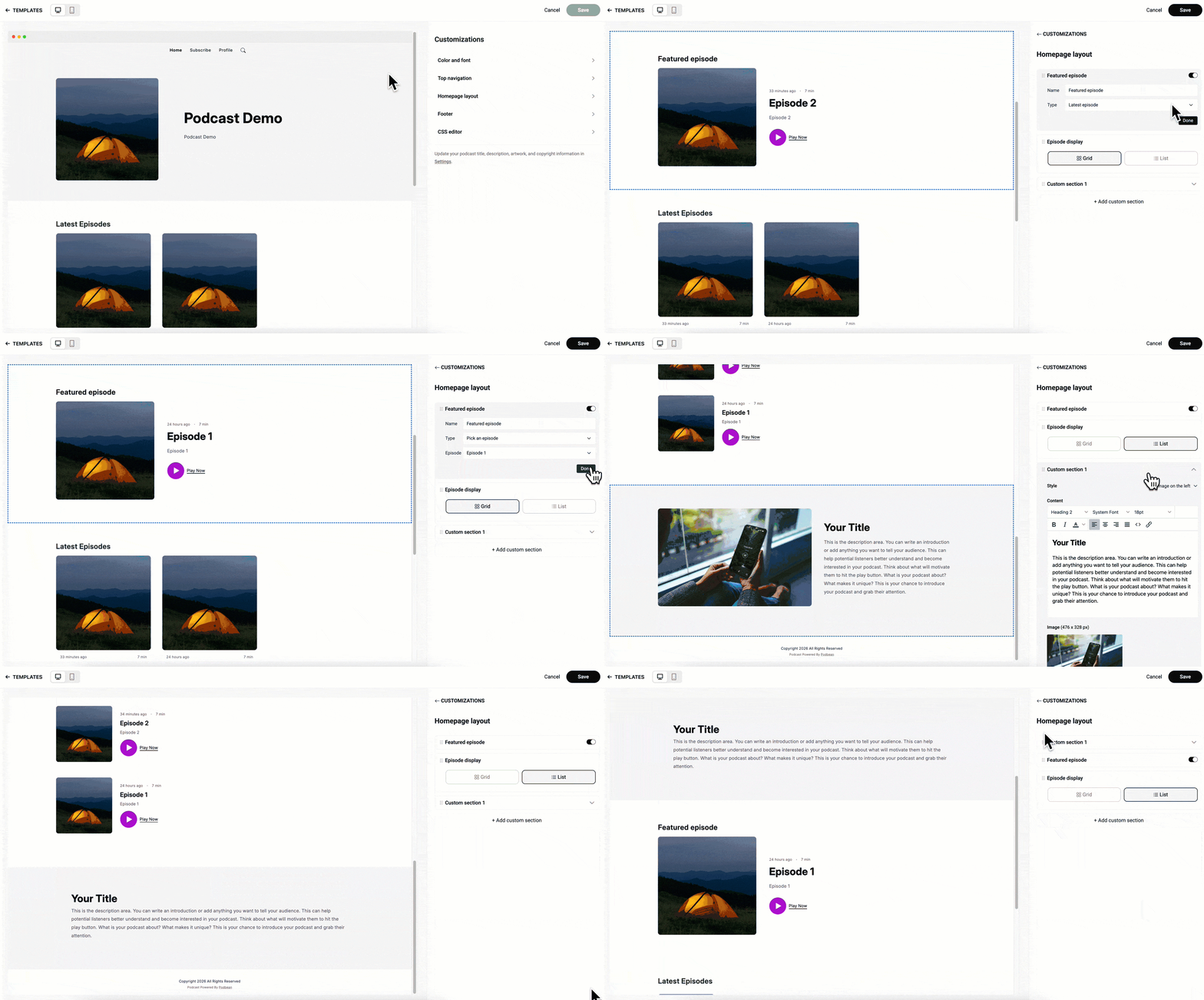
Homepage Layout
Customize how content is displayed on your podcast website.
- Episode Display – Choose how episodes are displayed on your homepage.
- Available layouts include Grid and List.
- Available layouts include Grid and List.
- Featured Episode– Show or hide the featured episode section on your homepage.
The Latest episode
or select a certain episode
- Custom Sections – Add custom content to highlight what matters most, such as host introductions, announcements, or sponsor messages.
- You can edit each section, drag and drop sections to reorder them, or remove them at any time.
Footer
Customize the content displayed at the bottom of your podcast website.
- Social Links – Add links to your social media profiles. The corresponding social icons will appear in your website footer.
- Cookie Banner – Enable or disable the cookie banner displayed on your podcast website.

CSS Editor
Customize your podcast website using custom CSS.
Note: This feature is recommended for users who are familiar with CSS.For more information, see How to Edit CSS with Podbean Themes.